Manholes and Handholes are access chambers in the ground giving engineers or inspectors access to cables and fibers that run through underground trenches.
The recommended way to create manhole or handholes in IMS is to first configure a site template containing a Manhole / Handhole along with at least one Joint/Splice box, and then deploy them as a single or multiple Sites as shown below.
For information on how to create Site and Equipment templates, refer to the section in IMS Basics - User Guide called Templates – Site, Node, DDF/ODF. |
Create multiple Manholes / Handholes
From the Network Map's Options bar:

▪Select the Drawoption (Pencil icon)
▪From the dropdown list, select the Point option
This will reveal a blue dot on the Network Map. Now select the various site locations that will house the Manholes / Handholes by:
|
Left clicking on the map - the blue dot will turn into a yellow location marker |
|
From the Network Map's Options bar, select the Save Drawbuffer ... (Up Arrow icon) - the Create Multiple Sites popup window appears. |
|
Fill in the required information - in particular selecting the appropriate Site Template form the Site Template dropdown field which contains the necessary manhole / handhole equipment |



▪Click on the Save icon in the lower left corner of the popup window when finished.

Create a single Manhole / Handhole
Follow the same steps as in Create Multiple Manholes / Handholes mentioned above, up to and including Step 1.
From the Network Map's Options bar:
▪Select the Drawoption (Pencil icon)
▪From the dropdown list, select the Point option
This will reveal a blue dot on the Network Map.
▪Right click on the required site location for the Manhole / Handhole
▪From the dropdown list provided, select Create followed by the Site: <address> options
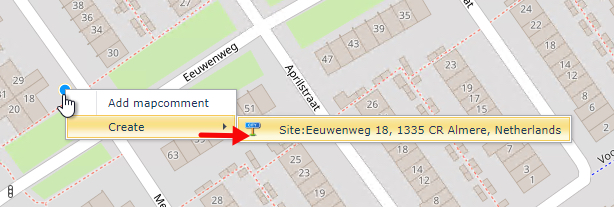
The Add Site popup window will appear.
▪Fill in all the required information, in particular the Site Type field with the correct candidate that contains the Manhole / Handhole definition. The appropriate Site Type field selected should contain the Manhole / Handhole equipment
▪Click on the Save icon in the bottom left corner of the popup window when finished