From the User form tab, and then the Search area:
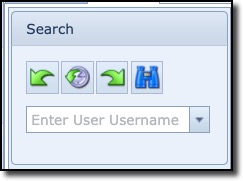
The search (pull-down) field is used to search for User names matching the entered string in the field
or
when clicking the pull-down icon and then using the search fields at the top of each field column to filter your search - Username, FirstName, MiddleName, Surname, or FullName.
Once the User has been located and selected, the User tab now contains several areas of information about that particular User as described below.
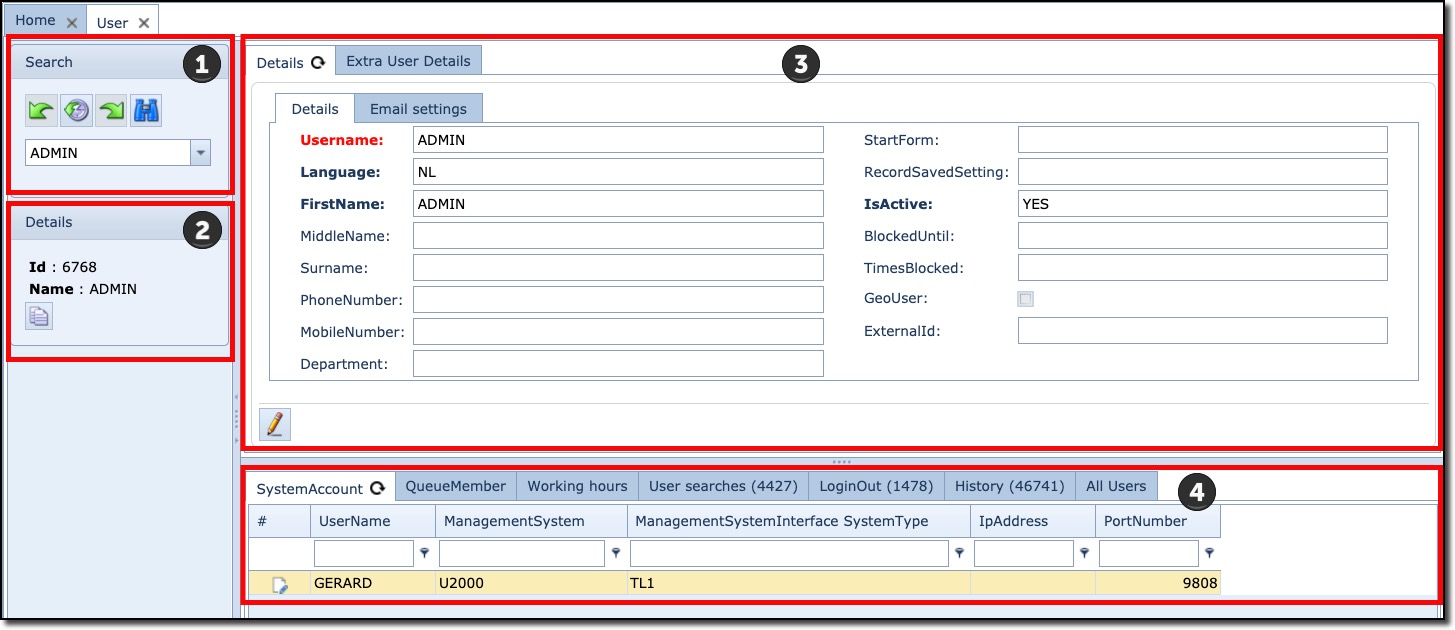
The User from contains various tabs of information. The following is a brief description of the User Form main areas:
1 |
Search |
User search feature |
2 |
Details (summary information) |
Basic User details including the DB id. |
3 |
Details pane (expanded information) |
User administrative information containing two tabs, including email settings |
4 |
Related information pane |
Various User related information and IMS objects i.e., Queues |