From the Order Actions menu bar:
If no existing orders are already open:
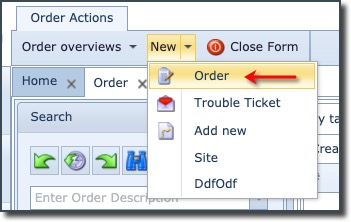
If existing orders are open:

•Click on the New option
This opens the Create new Order popup window
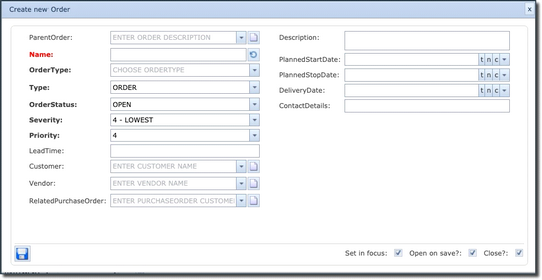
Fill in the following details:
Parent Order |
Name of Parent Order if applicable – i.e., this order is a sub-order |
Name |
Name of this new Order |
OrderType |
Select an order type – i.e., “Construct fiber and update design” |
Type |
Select type – i.e., Order or Fault (Trouble Ticket) |
OrderStatus |
Select this Order’s status: Closed, Open, or Cancelled – default is Open |
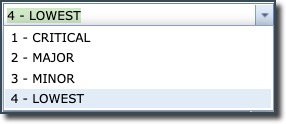
Severity |
Refers to the problem/issue raised i.e., how serious this issue is. Select from 1 to 4. |
Priority |
Refers to how the problem/issue is to be treated for resolution i.e., Tech Support. Select a value from 1 to 4 – 1 being the highest priority |
LeadTime |
Time in days/hours this problem/issue should take to resolve |
Customer |
Customer name this Order relates to |
Vendor |
Name of the Vendor of the IMS object related to this Order |
RelatedPurchaseOrder |
Purchase Order reference related to this Order |
Description |
Text field to add further description about this Order |
PlannedStartDate |
Date when order is planned to be started |
PlannedStopDate |
Date when order is planned to be finished |
DeliveryDate |
Date when order must be delivered to customer |
ContactDetails |
Text field to add any additional contact details for this Order |
•Click the Save button
If the Order Type is configured, then fill in the Order Name last, as this will be generated automatically based on the Order Type name generator (if applicable) |
|
Prior to creating an Order, selecting the In Focus option will ensure that it is placed in focus, which is a convenient way to automatically assign new network objects to that order. This saves time having to search for and assign the new network objects to the order. |