On an open Order instance, the following functionality is available from the Order Actions button bar:

Orders Overview |
All Running Orders |
Popup window list of all current in date orders |
|||
Orders passed plannedstop date |
Popup window list of all orders past their planned stop date |
||||
Add working hours |
Input the number of working hours this order should be accomplished in hours and minutes (hh:mm) – popup window appears |
||||
|
Re-assign |
Re-assign an order/task to another user (in your department queue) |
|||
|
Dispatch |
Dispatch an order/task to another (department) queue |
|||
|
Yank |
Yank (grab) an order/task from anywhere into your queue |
|||
|
Reject |
Reject an order/task back to its previous task/queue |
|||
|
Close |
Put order into Close status |
|||
Close complete |
Put this order into closed status. Can be reinstated via the Re-open icon which appears dynamically. |
||||
Cancel |
Cancel this order/task – order status goes into Cancelled status. To re-engage this order, close it and then reopen it (using Close Complete option, and the Re-open icon (appears dynamically)
|
||||
|
Put order in focus |
Put this order in focus |
|||
Create or update B.O.M.
|
Create or update the bill of material based on the related objects to an order/task |
||||


|
Related objects |
Add related objects |
Add various existing IMS objects to this order |
|
Remove all related objects |
YES / NO |
|||
Set all related objects to status IS |
Set all related objects’ status’ to In Service |
|||
Set all related objects to status RFS |
Set all related objects’ status’ to Ready For Service |
|||
Export |
Create a geographical KMZ-file based on certain related objects in this order i.e., Site date from circuit object |
|||
Export related objects to a Shape file - those with Geographical coordinates |
||||
|
Add logging |
Add some free form text logging to this order |
||
|
Attachments |
Attach files to this order |
||
|
Copy |
Under development |
||
New |
Order |
Create a new Order |
||
Trouble Ticket |
Create a new Trouble Ticket |
|||
Add new (circuit) |
Create new circuit to add to this order |
|||
Site (node) |
Create a new node to add to this order |
|||
DdfOdf |
Create a new DdfOdf to this order |
|||
|
Delete |
Delete this order |
YES / NO |
|
|
Close Form |
Closes this entire Order form |
||


To Cancel an Order that has already been started, the following entry in the User Settings feature will need to be created. This is accessed from the IMS Main Menu | System | Users | User Settings
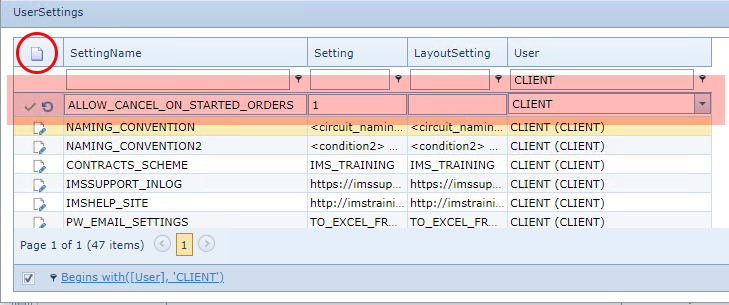
▪Click on the New option (paper icon)
▪Fill in the SettingName, Setting, and User columns as highlighted in the above screen shot
▪Click the Green Tick symbol on the new entry line to Save